 iOS Droids
 Seeking an alternative to the iOS App Store? The answer might just be AltStore. This third-party app store for iOS devices offers a plethora of apps and tweaks that aren’t available on the official App Store. In this post, you will learn how to get AltStore on your iPhone or iPad, be it through a Windows PC or a Mac.
What is AltStore?
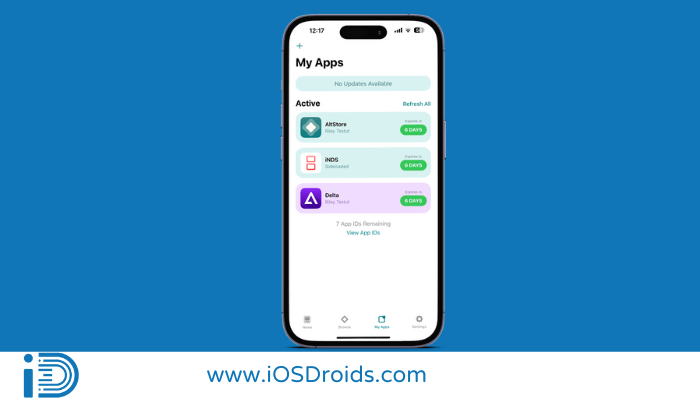
AltStore is a fully native, alternative app store for iOS devices. Unlike other unofficial app stores, AltStore doesn’t rely on enterprise certificates, which Apple has been cracking down on recently. Instead, it utilizes a developer feature that Apple introduced for sideloading apps, making it a reliable solution.
How to Install AltStore on iPhone using Windows PC?
For the Windows aficionados out there, here’s a step-by-step guide to get AltStore up and running on your iOS device:
Prerequisites: An iPhone or iPad. Data Transfer Cable A Windows PC Downloads Download AltStore Download iTunes for Windows Download iCloud for Windows Installation Steps: Download and Install AltServer: Head over to the AltStore website and download AltServer for Windows.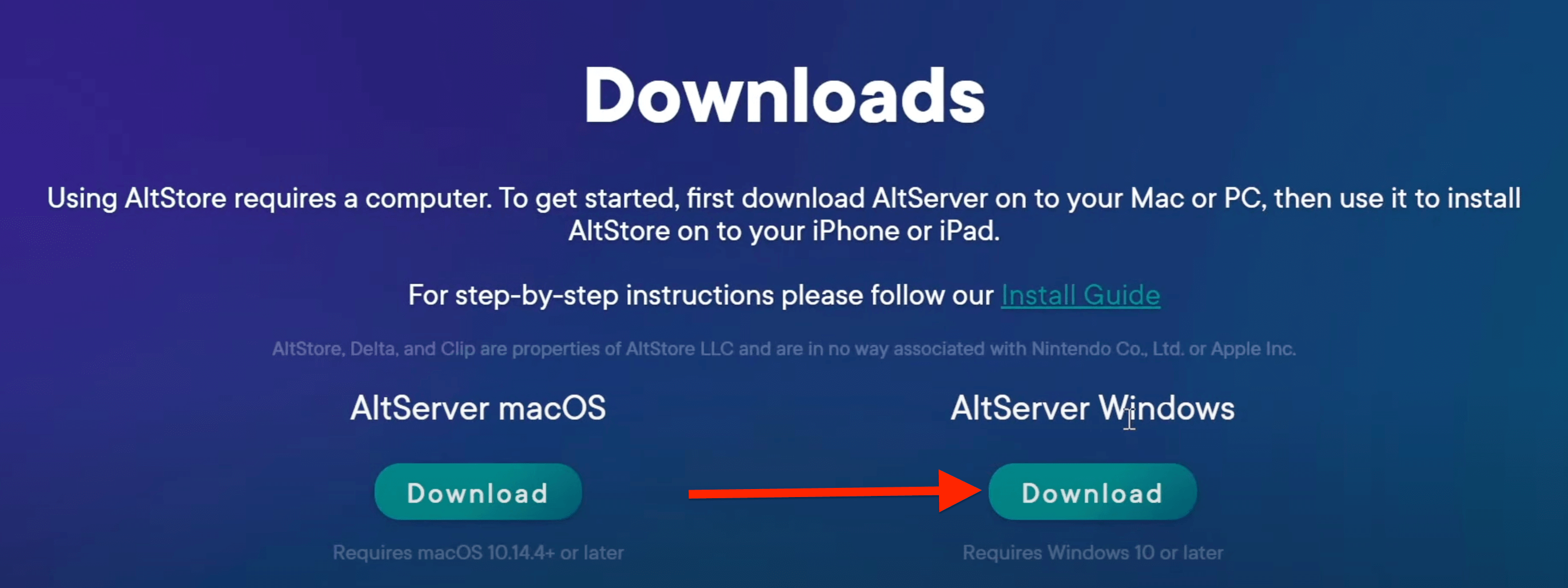
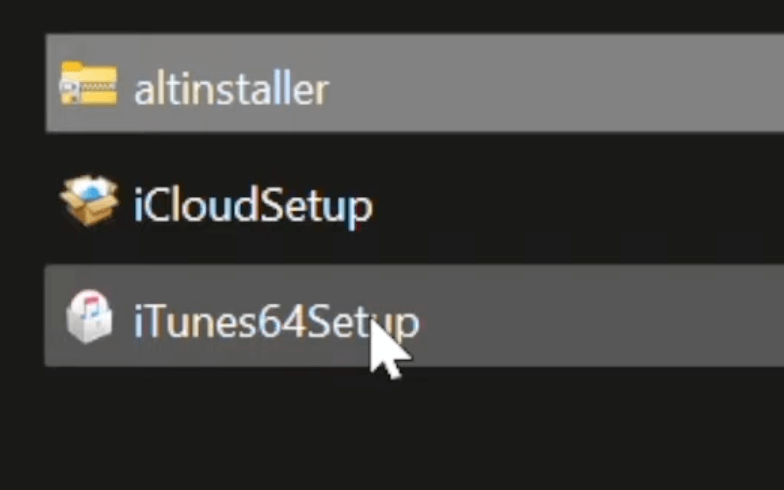
Once downloaded, extract the ZIP file and run the ‘setup.exe’ to install it. Install iTunes and iCloud: Make sure to install the latest version of iTunes and iCloud on your Windows computer.
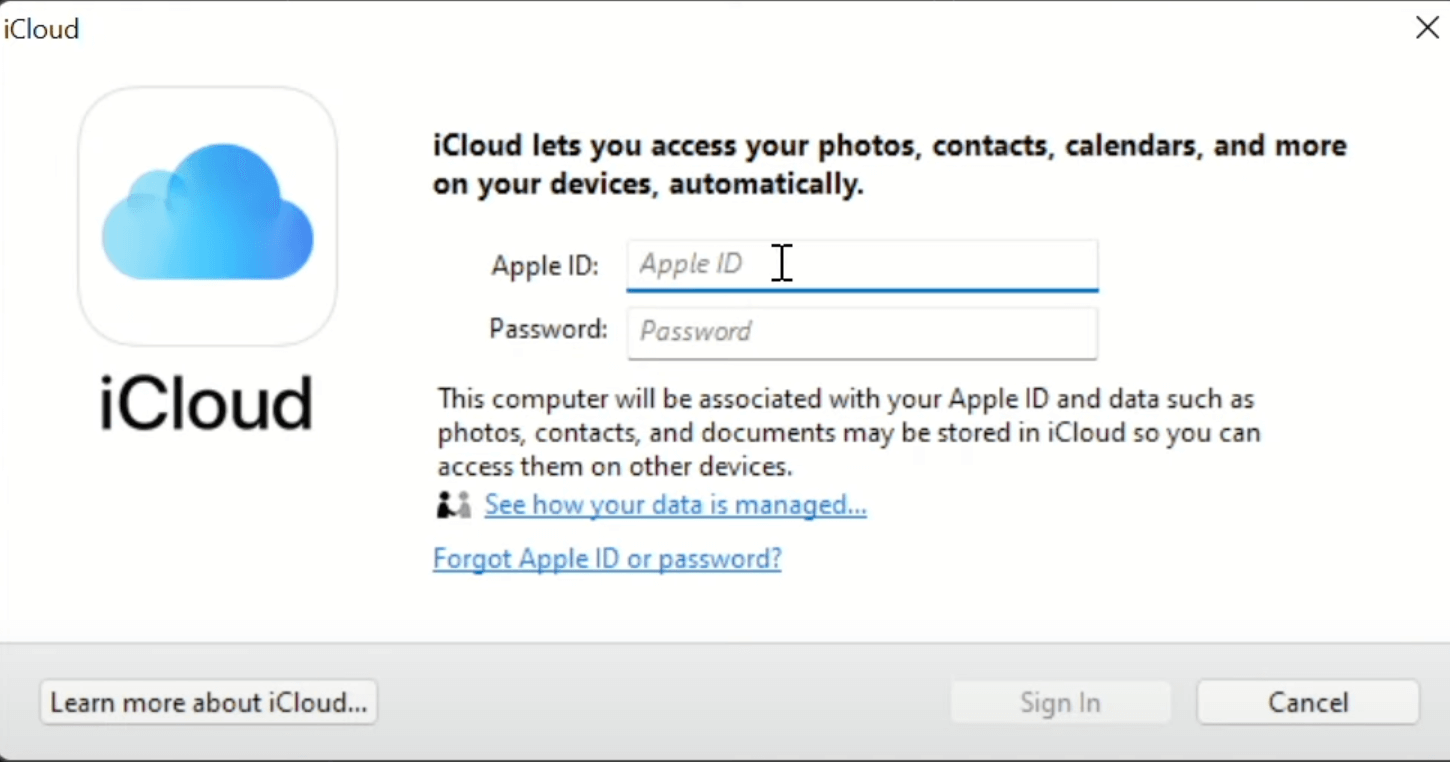
 Open iCloud: Open iCloud and log in with your Apple ID.
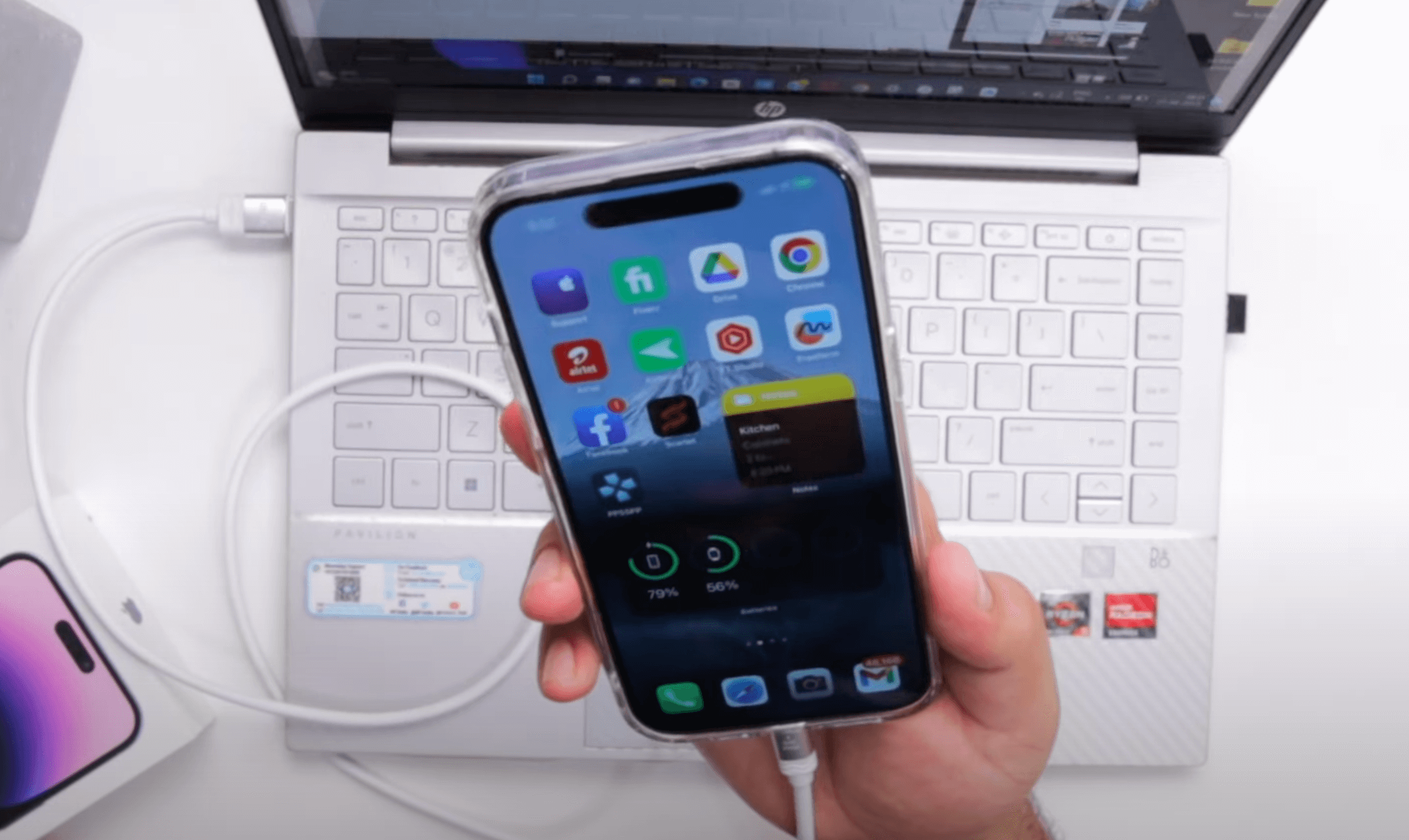
 Connect your iOS Device: Connect your iPhone or iPad to your Windows PC using the Data Transfer Cable.
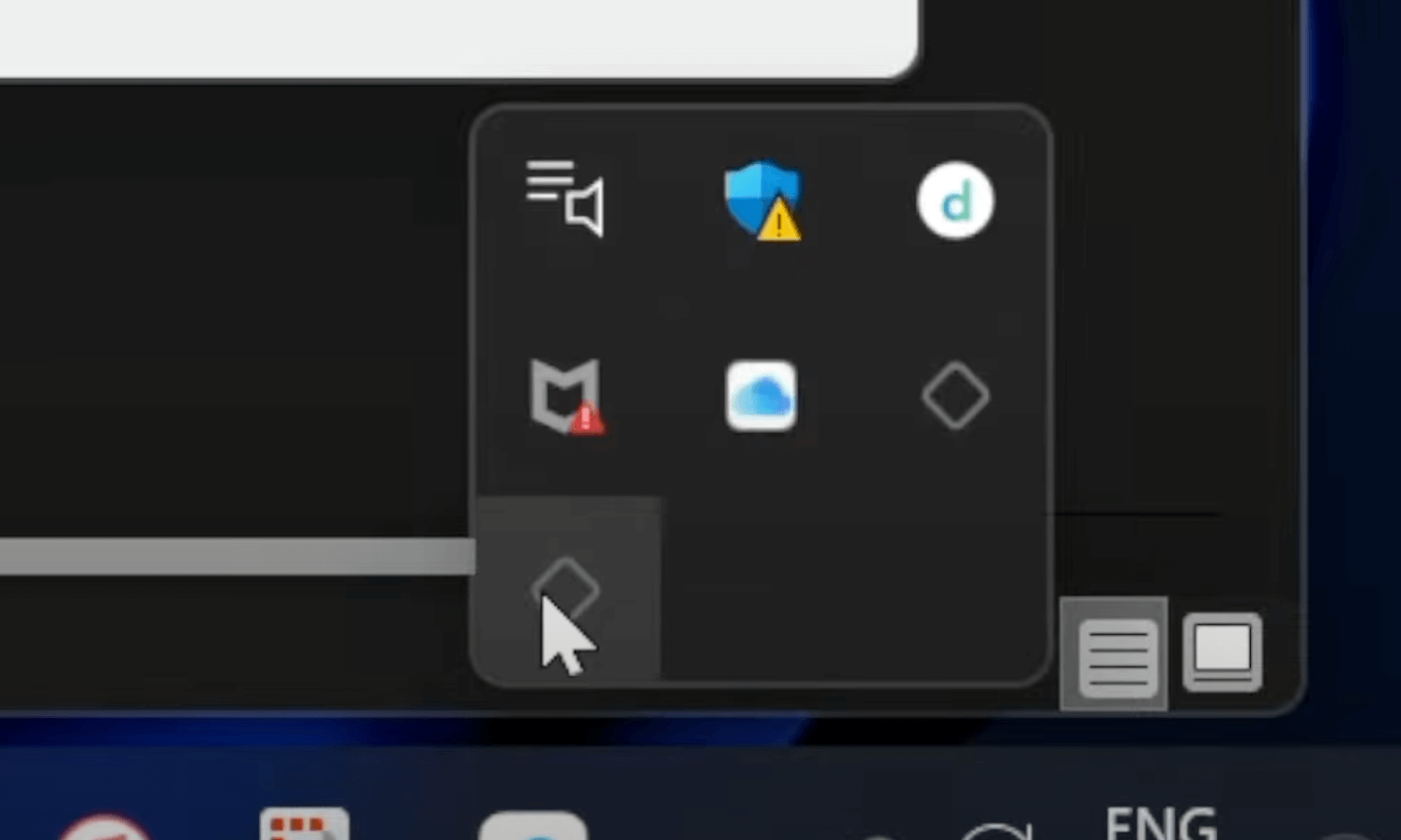
 Open AltServer: Look for AltServer in the system tray. If you don’t find the icon in the system tray, click on the arrow icon, and it will display the AltServer icon.
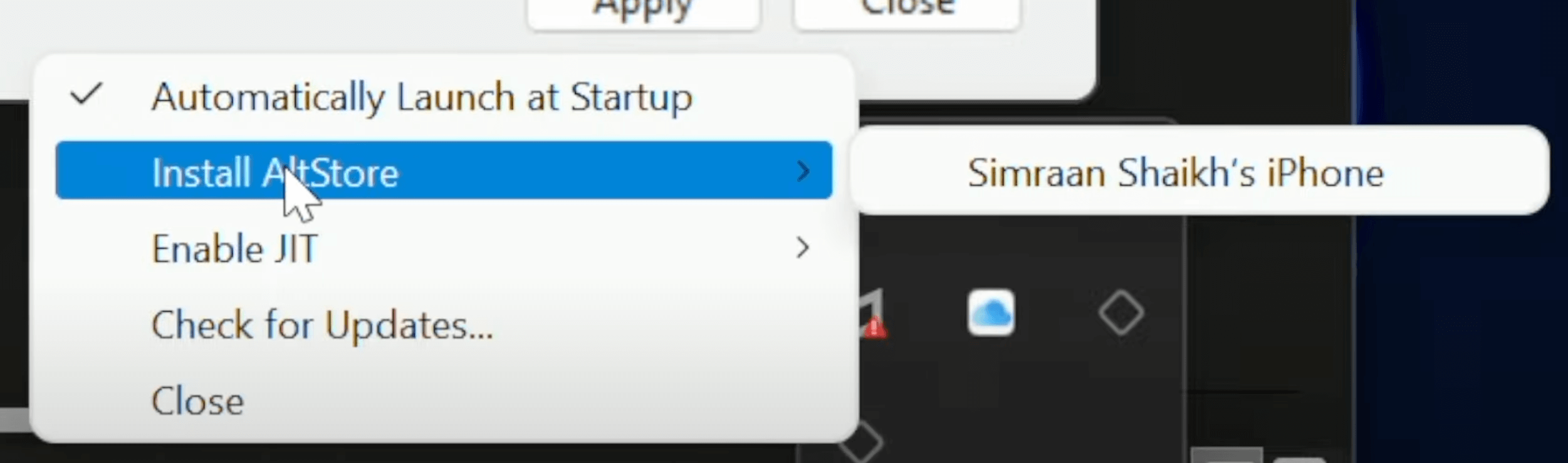
 Install AltStore: Click on the AltServer icon, click on Install AltStore, select your iOS device from the list, and then the installation begins.
 Enter Apple ID Credentials: You’ll be prompted to enter your Apple ID and password. This information is sent directly to Apple, ensuring privacy.
Head to your iOS Device: Once AltStore is installed, navigate to Settings > General > VPN & Device Management. Tap on your Apple ID and select ‘Trust’.
Enter Apple ID Credentials: You’ll be prompted to enter your Apple ID and password. This information is sent directly to Apple, ensuring privacy.
Head to your iOS Device: Once AltStore is installed, navigate to Settings > General > VPN & Device Management. Tap on your Apple ID and select ‘Trust’.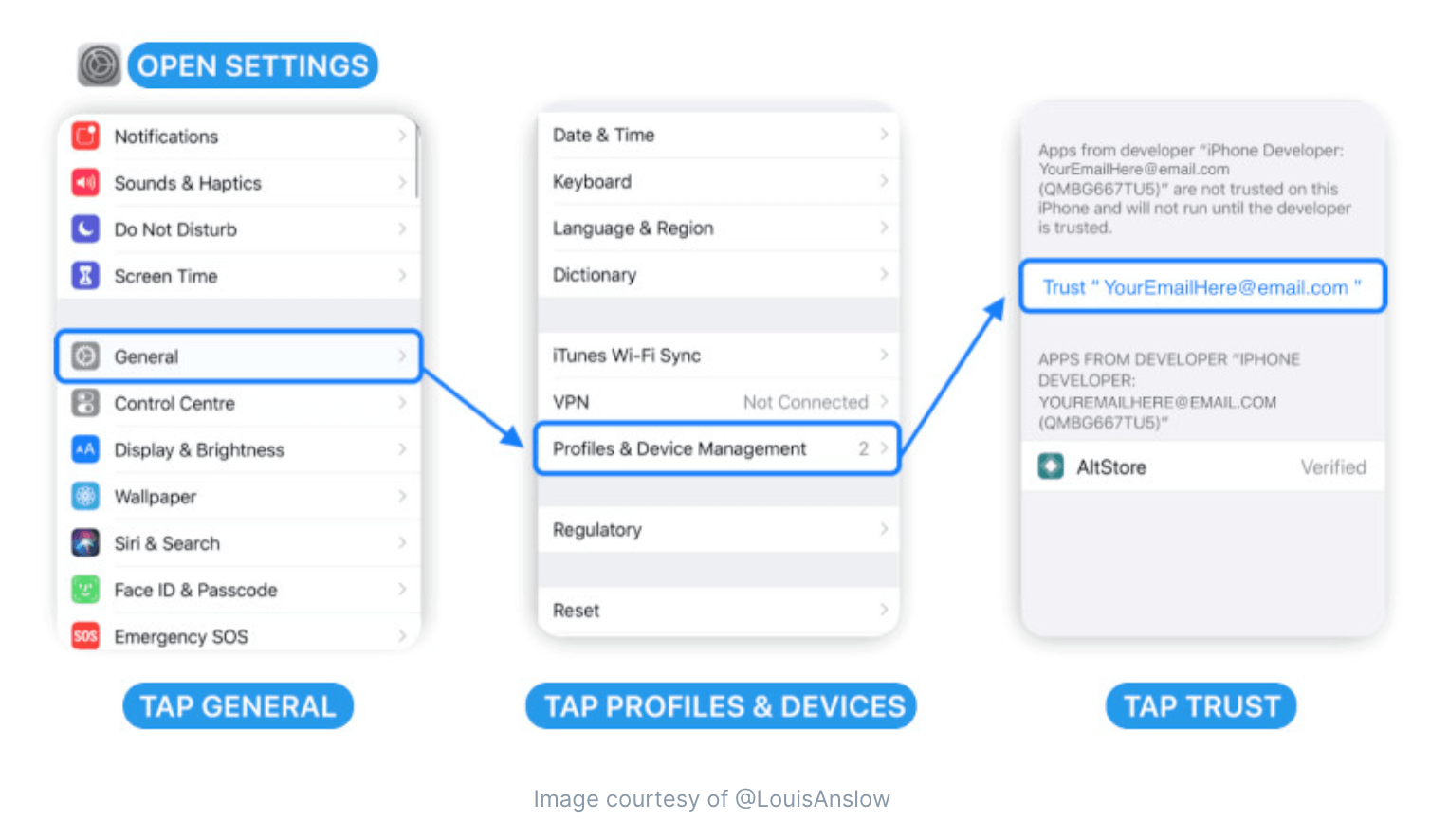 Enable Developer Mode: Navigate to Settings > Privacy & Security > Developer Mode(At the bottom). Enable Developer mode and reboot your iPhone.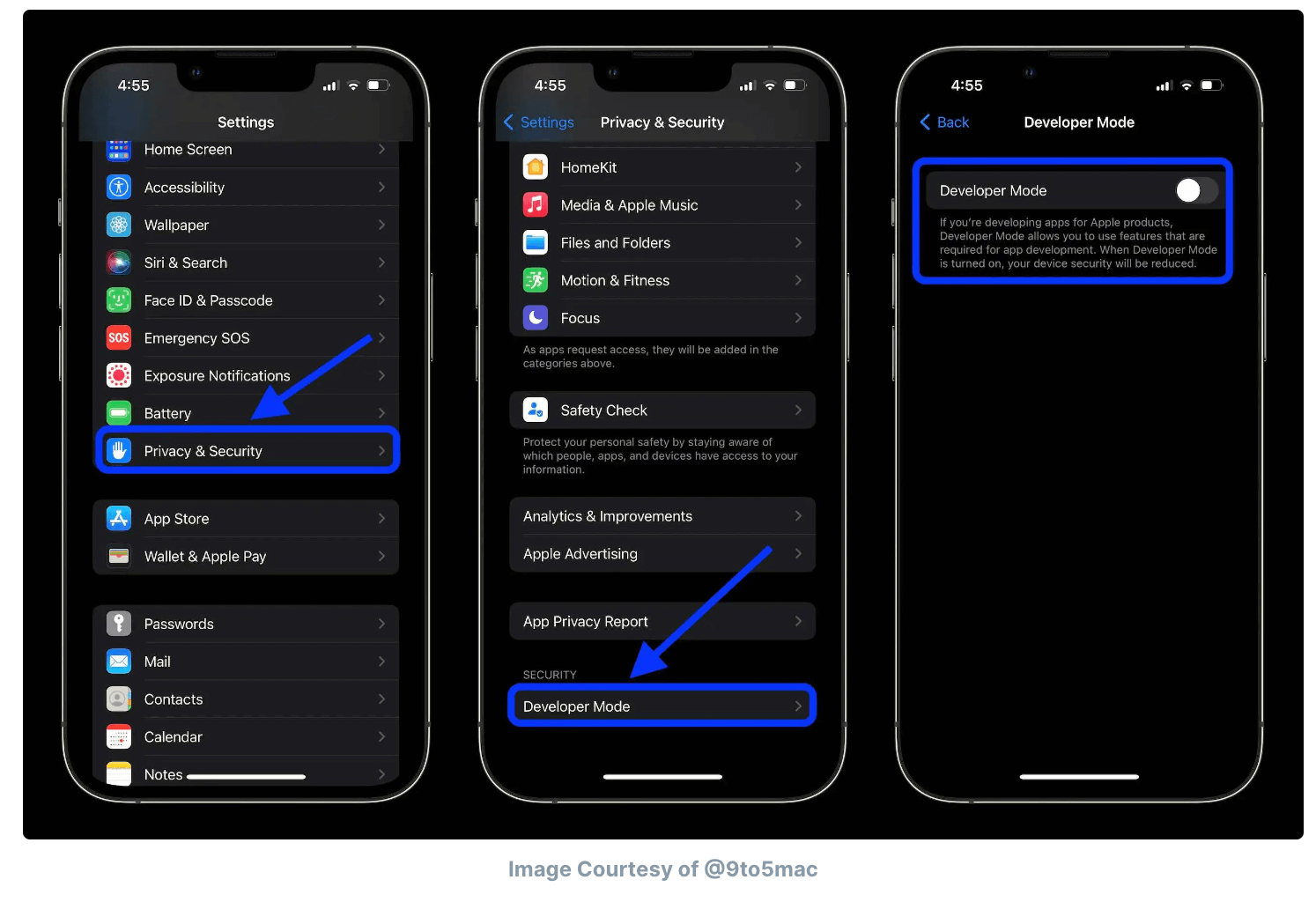
Voila! AltStore should now be on your iOS device, ready for use.
Table: Installation Process for Windows
| Preparation | Ensure the latest iTunes and iCloud are installed. |
| Download | Get AltServer from the AltStore website. |
| Connection | Connect iPhone/iPad to Windows PC. |
| Access | Open AltServer from the system tray. |
| Installation | Choose your iPhone and input your Apple ID. |
| Verification | Navigate to device settings, and trust the application. |
How to Install AltStore on iPhone using Mac?
Mac users, we’ve got you covered too. Here’s how to get AltStore on your iOS device via a Mac:
Prerequisites: Your iPhone or iPad. A Mac with the latest iTunes and Mail app installed. Data Transfer Cable Downloads Download AltStore Installation Steps: Download and Install AltServer: Visit the AltStore website to download AltServer for Mac. Once downloaded, drag and drop it into your Applications folder. Launch Mail app: Before proceeding, ensure the Mail app is running in the background. Open AltServer: Once AltServer is up, you’ll find its icon in the Mac menu bar. Connect your iOS Device: Via USB, connect your iOS device to your Mac. Install AltStore: Click on the AltServer icon in the menu bar, choose ‘Install AltStore’, and then select your iOS device. Input Apple ID Details: As with Windows, you’ll be prompted for your Apple ID credentials. Verification on iOS Device: Again, go to Settings > General > Device Management, select your Apple ID, and tap on ‘Trust’.
Enable Developer Mode: Navigate to Settings > Privacy & Security > Developer Mode(At the bottom). Enable Developer mode and reboot your iPhone.
AltStore should now be available on your iOS device’s home screen.
Table: Installation Process for Mac
| Preparation | Have the latest iTunes and Mail app ready. |
| Download | Get AltServer from the AltStore website. |
| Initialization | Run the Mail app. |
| Connection | Connect iPhone/iPad to Mac |
| Access | Open AltServer from the Mac menu bar. |
| Installation | Choose your iPhone and input your Apple ID. |
| Verification | Navigate to device settings, and trust the application. |
Related Posts:
PGSharp iOS FSolver iOS PokeMMO iOSFrequently Asked Questions

1. Is AltStore Safe?
Absolutely! AltStore utilizes Apple’s developer features, ensuring no harmful third-party certificates.
2. Do I need to pay for AltStore?
No, AltStore is completely free. However, if you wish to support the developers, you can donate on their website.
3. How often do I need to refresh apps on AltStore?
Apps installed via AltStore need to be refreshed every 7 days. AltStore does this automatically if you’re on the same Wi-Fi network as AltServer.
Final Words

AltStore offers iOS users an avenue to explore apps outside of the official App Store. Whether you’re using a Windows PC or a Mac, the installation process is straightforward. And with our guide in hand, there’s nothing stopping you from diving into this alternative app universe. Happy exploring!
 ZDNet
ZDNet 
 Mashable
  Technoclick
 AppleInsider