
 LandVest
 Adding a hit marker effect (like the ones you see in FPS games such as Call of Duty) can make your videos feel more dynamic and satisfying—especially for gaming edits or action clips. Here’s a clear, beginner-friendly guide to creating this effect in Sony Vegas.
What You’ll Need
- Sony Vegas (any recent version works)
- A hit marker image (PNG with transparent background) or video overlay
- A hit marker sound effect (optional but highly recommended)
Step 1: Import Your Files
- Open Sony Vegas.
- Import your main video footage.
- Import your hit marker image (PNG) and sound effect.
- Drag everything into the Project Media panel.
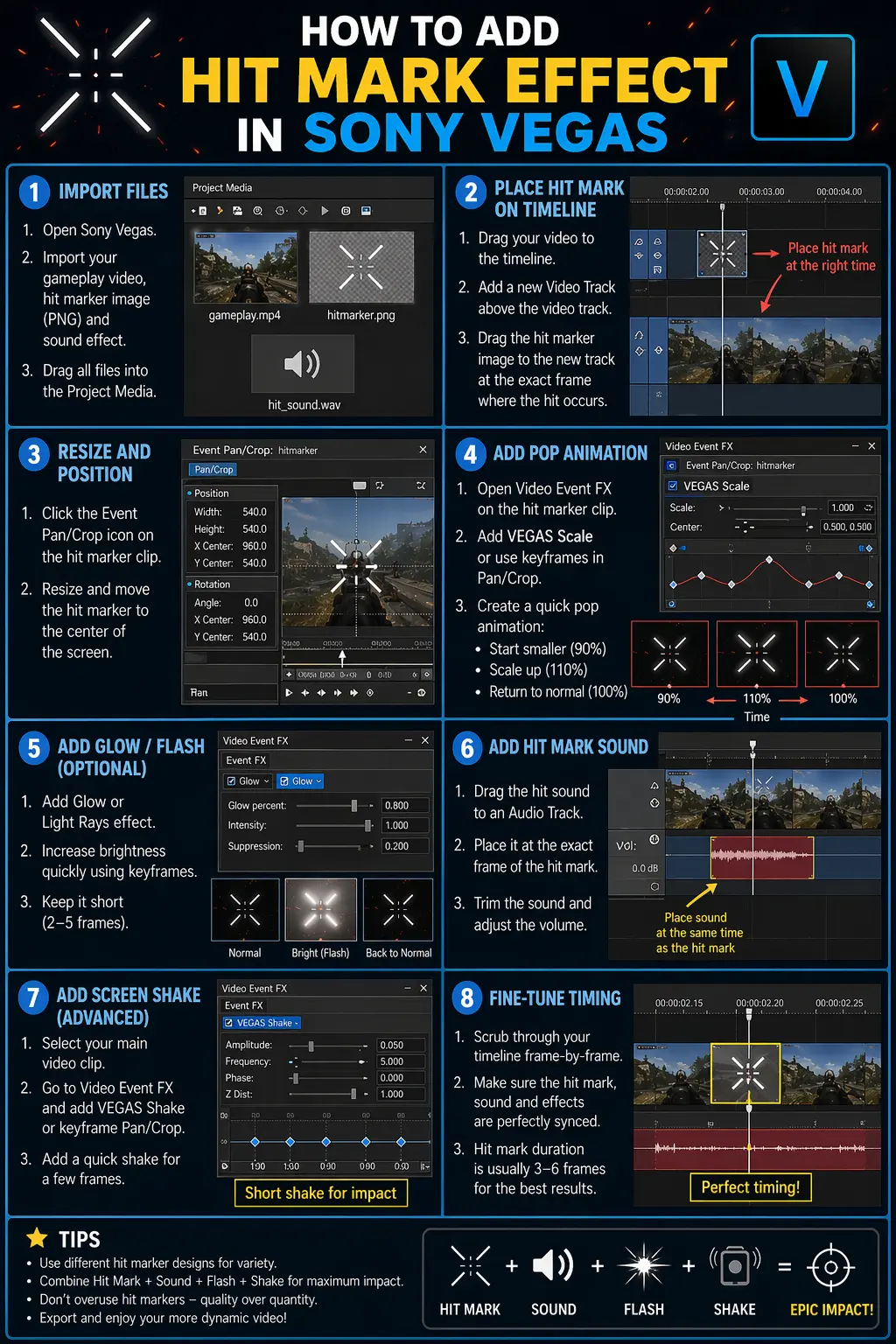
Step 2: Place the Hit Marker on the Timeline
- Drag your video clip onto the timeline.
- Add a new Video Track above your main footage.
- Place the hit marker PNG on this new track at the exact frame where the “hit†happens.
Tip: Zoom into the timeline to align it precisely with the action.
Step 3: Resize and Position the Hit Marker
- Click the Event Pan/Crop icon on the hit marker clip.
- Resize the image so it appears centered (like a crosshair).
- Position it in the middle of the screen.
Optional: Slightly scale it up or down depending on your style.
Step 4: Add Animation (Pop Effect)
To make the hit marker feel impactful:
- Open Video Event FX on the hit marker clip.
- Add VEGAS Scale or use keyframes in Pan/Crop.
- Create a quick scale animation:
- Start slightly smaller (e.g., 90%)
- Quickly scale up to 110%
- Return to 100%
This creates a “pop†effect.
Step 5: Add Glow or Flash (Optional but Cool)
- Add a Glow or Light Rays effect.
- Increase brightness briefly using keyframes.
- Keep it very short (2–5 frames) so it doesn’t look overdone.
Step 6: Add Hit Marker Sound
- Place the sound effect on an Audio Track aligned with the hit marker.
- Trim it so it plays instantly on impact.
- Adjust volume if needed.
Sound is what really sells the effect—don’t skip this.
Step 7: Add Screen Shake (Advanced)
For extra impact:
- Select your main video clip.
- Open Video Event FX → VEGAS Shake (or use keyframes in Pan/Crop).
- Add a quick shake lasting a few frames.
Keep it subtle—too much shake looks messy.
Step 8: Fine-Tune Timing
- Scrub through your clip frame-by-frame.
- Make sure the hit marker appears exactly when the action happens.
- Adjust duration (usually 3–6 frames works best).
Extra Tips
- Use different hit marker designs for variety.
- Layer multiple effects (flash + sound + shake) for stronger impact.
- Don’t overuse hit markers—it reduces their effectiveness.
Final Thoughts
Adding a hit marker in Sony Vegas is simple but incredibly effective when done right. With good timing, subtle animation, and proper sound design, you can make your edits feel much more professional and engaging.
If you want, I can show you how to create a custom animated hit marker from scratch or give you free asset packs to use.
The post How to Add a Hit Marker Effect in Sony Vegas (Step-by-Step Guide) appeared first on free product key.
 Book Club Chat
  From Soil to Soul Blog
  Bettercar Rental Blog
 Kuno Creative
  RAD Insurance Blog
  Miami International Yacht Sales Blog