

Avoid HsGetValue if you can, but if you need to use it, try this instead of using a private connection.
One of my very early posts (over six years ago!) was about using an XML file to manage multiple EPM Smart View connections. Recently, a customer asked if it was possible to use the XML file for connections to use with HsGetValue formulas. The short answer is “no”. But there is another way that may make it easier for your users so they do not have to create private connections.
Functions like HsGetValue typically need a private connection. A private connection is machine specific, each user needs to create their own private connection. This can be cumbersome and makes sharing workbooks challenging since everyone using the workbook needs a private connection with the same name referenced in the workbook. Certainly not impossible, I have set this up multiple times over the years. But then I discovered a pseudo shared connection using URLFN. This is an identifier in Smart View that specifies a workspace function along with a connection string. This allows us to create a string with the application specifics needed to connect without creating a private connection. The workbook can then be shared, and assuming the person using the workbook has EPM access, the data can be refreshed.
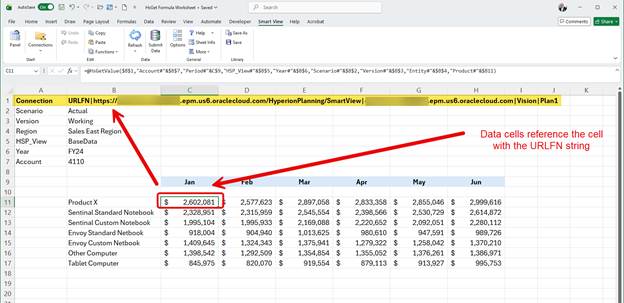
Setting up this type of connection is straightforward once you understand the syntax needed. When I set up a workbook to use HsGetValue, I add the name of my private connection to a cell and reference that one cell in all the HsGetValue formulas. To use the URLFN connection, just place that string in the cell instead of the name of the private connection.
Step 1: Create the URLFN String
The URLFN string is the environment URL, server, application name, and database name, along with pipe delimiters to organize appropriately.
Syntax: URLFN|Environment URL|Server|Application|Database
Example:
Environment URL: https://acme- a999999.epm.us6.oraclecloud.com/ HyperionPlanning/SmartView
Server: acme- a999999.epm.us6.oraclecloud.com
Application: Vision
Database: Plan1
URLFN|https://Acme-a999999.epm.us6.oraclecloud.com/HyperionPlanning/SmartView|Acme-a999999.epm.us6.oraclecloud.com|Vision|Plan1
Step 2: Create the report
Create the report the same as you would with a private connection but use the URLFN string instead.
And that’s it, you now have a workbook with HsGetValue formulas that do not use private connections and can easily be shared with other users.
I do want to add that I try to discourage the use of HsGetValue. It can be a performance problem with larger spreadsheets, each cell acts as its own retrieval. The more cells with the formula, the more retrievals. But I also can acknowledge that there are plenty of valid use cases for creating Excel reports using HsGetValue, just be aware of potential performance issues.
As always, happy EPM’ng!