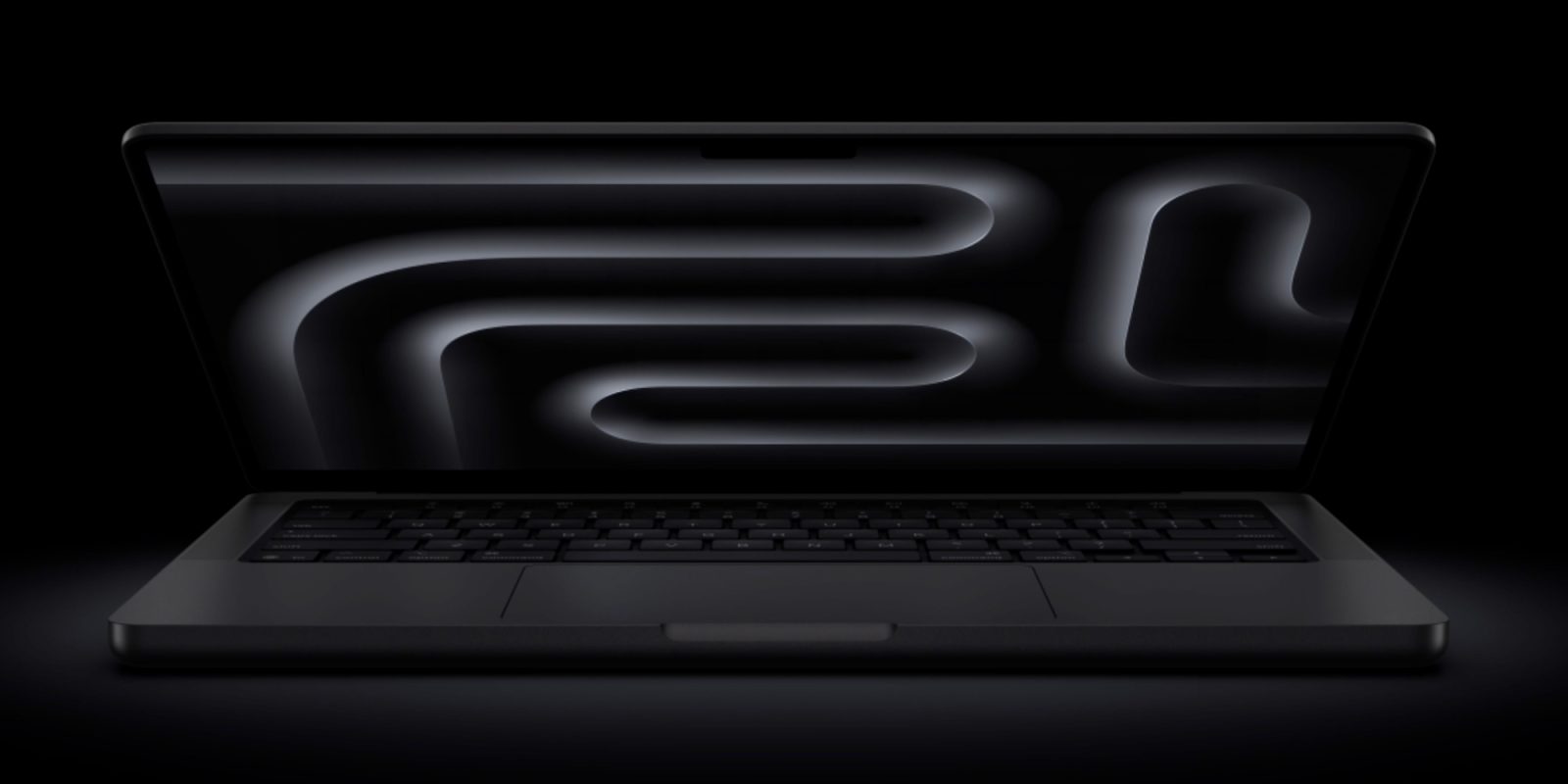

Explore what truly matters in a MacBook Pro external monitor and how ViewSonic ColorPro displays meet those needs with precision. The post Best Monitors for MacBook Pro: The Guide appeared first on ViewSonic Library.
You just got your MacBook Pro, or maybe you plan to buy one soon. Whether for mixed home use, work on the go, or creativity, the top tier Mac laptop reigns supreme. But then again, you likely want to connect your MacBook Pro to an external monitor to get more done at your home or office, and that screen needs to meet Apple retina resolution and color standards. So how do you choose the best monitor for MacBook Pro?
Stay with us as we answer this question and of course make sure to check out our Mac-compatible monitors in the ViewSonic ColorPro VP88 Series.
What to Look for in a Monitor for MacBook Pro Users
MacBook Pro users crave connectivity and flexibility. Due to the design of MacBook Pros, more ports and connections are a premium feature when you look at a desktop monitor. Also, expandability and color precision rank very high when considering the best monitors for MacBook Pro. By color precision we mean monitors that remain consistent with MacBook Pro wide color gamut and overall image quality.
So, what should you look for when shopping for a MacBook Pro monitor?
Here are the top things to keep in mind:
- Easy connectivity and Extra Ports
- Color Accuracy and DCI-P3 Color Gamut Coverage
- Easy Expansion of Your Workplace
Easy Connectivity and Extra Ports
With regards to a full-sized desktop monitor, additional plug and play ports via USB hubs greatly expand your productivity. They free you from the often-restrictive connection offerings that ship with MacBook Pro by default. Moreover, you want a display that you connect to when at home base and then disconnect from when mobile without a fidelity sacrifice.
A great MacBook Pro monitor also acts as a built-in dock. With the ViewSonic ColorPro VP88 Series, you get plenty of ports right on the display, so you can connect your drives, cameras, or accessories without extra hubs. It keeps things tidy and makes your workspace feel more organized.
And because everything is built into the monitor, you can bring it all together with a single cable. Just plug your MacBook Pro into the monitor with one cable and everything comes to life at once, including charging and your connected devices. It is an easy way to simplify your setup.
Color Accuracy and DCI-P3 Color Gamut Coverage
The best monitors for MacBook Pro match the acclaimed laptop’s visual capabilities. Ensure you go with a display that delivers a wide color gamut. As current MacBook Pro models achieve 99% of the DCI-P3 color space, any external screen you go with must do the same. Lower coverage hampers color-critical work and affects the consistency of the projects you work on.
Additionally, while your monitor of choice needs to arrive factory-calibrated for MacBook Pro duty, it should also include user friendly yet complete hardware calibration tools. As you may want to tweak color parameters for different tasks, precision calibration on the hardware level needs to feature on your list of must-have monitor specs. Only strong calibration capabilities properly ensure color match from MacBook Pro to external display in various usage scenarios.
Best monitor size for MacBook Pro
Here we have several dimensions of workspace expansion to keep in mind.
First, one of the main reasons to get an external or second MacBook Pro display is a larger screen. As MacBook Pro screens range from approximately 13-inch to just over 16-inch, the addition of a 24-inch, 27-inch, or even 32-inch monitor upgrades the screen space at your disposal. The larger display provides a massive boost in screen real estate, so you get more done and have access to more apps simultaneously.
Secondly, as mentioned earlier, the best monitors for MacBook Pro arrive with ample connectivity options. They serve as connection hubs and allow you to work with more devices. Essentially, a second screen acts as a passthrough for your MacBook Pro. You get additional Thunderbolt and USB-C ports (with power delivery) to expand your work and productivity. Those prove their utility whenever the stock ports on your MacBook Pro do not suffice, and negate the need for clutter-inducing docks, splitters, chargers, and adapters.
Thunderbolt 4 with Data and Power Delivery
The best monitors for MacBook Pro arrive with Thunderbolt 4 ready to go. Beyond complete compatibility with by-now-universal USB-C, these ports support up to 100W USB-C power delivery, which means the monitor can charge your MacBook Pro while you work. Of course, Thunderbolt 4 carries 40 Gbps of data, too. And it’s fully compatible with USB-C, so peripherals and external storage devices just work across macOS and Windows.
The extra ports afforded by the monitor come in super handy for photographers that have several cameras they want to connect to a MacBook Pro. The same flexibility applies in every workflow. Connect phones, tablets, and even other laptops, hassle-free.

Daisy Chained Displays
You may find yourself in need of more than one external monitor. Sounds complex? It’s not. The best monitors for MacBook Pro, like the ViewSonic VP2788-5K, make connecting several monitors to your MacBook Pro a breeze. This is known as daisy chaining, and opens many additional opportunities for expanded creativity and productivity.
MacBook Pro supports daisy chaining with Thunderbolt as the first link. Subsequent monitors may connect via USB-C, as well. You can have several monitors in a chain while still retaining available connections for devices other than displays.
We have a video we think you should watch to better understand how daisy chaining of monitors works and how it really helps you:
Create a One-Cable Desktop Workspace (Clamshell Mode)
As a direct follow-up to the connectivity discussion, we’d like to point out that MacBook Pro features lend themselves wonderfully to the neatest desktops possible.
Remember your MacBook Pro has a clamshell mode. With the lid down and connected to an external monitor via Thunderbolt 4, you need just one cable. The one from laptop to monitor. That’s it. Keyboard, mouse, headphones, printers and all other essential accessories work over Bluetooth or your Wi-Fi. No cables or wires required. The one cable desk setup dream becomes reality, and this time without resorting to cheats like hiding cables under the desk.
Conveniently, the best monitors for MacBook Pro have integrated connectivity hubs that serve as docks for a host of peripherals and devices. These hubs feature USB-C, HDMI, DisplayPort, and even audio passthrough.
What’s the Best MacBook Pro Monitor for My Workflow?
Geard Towards Graphic Designers
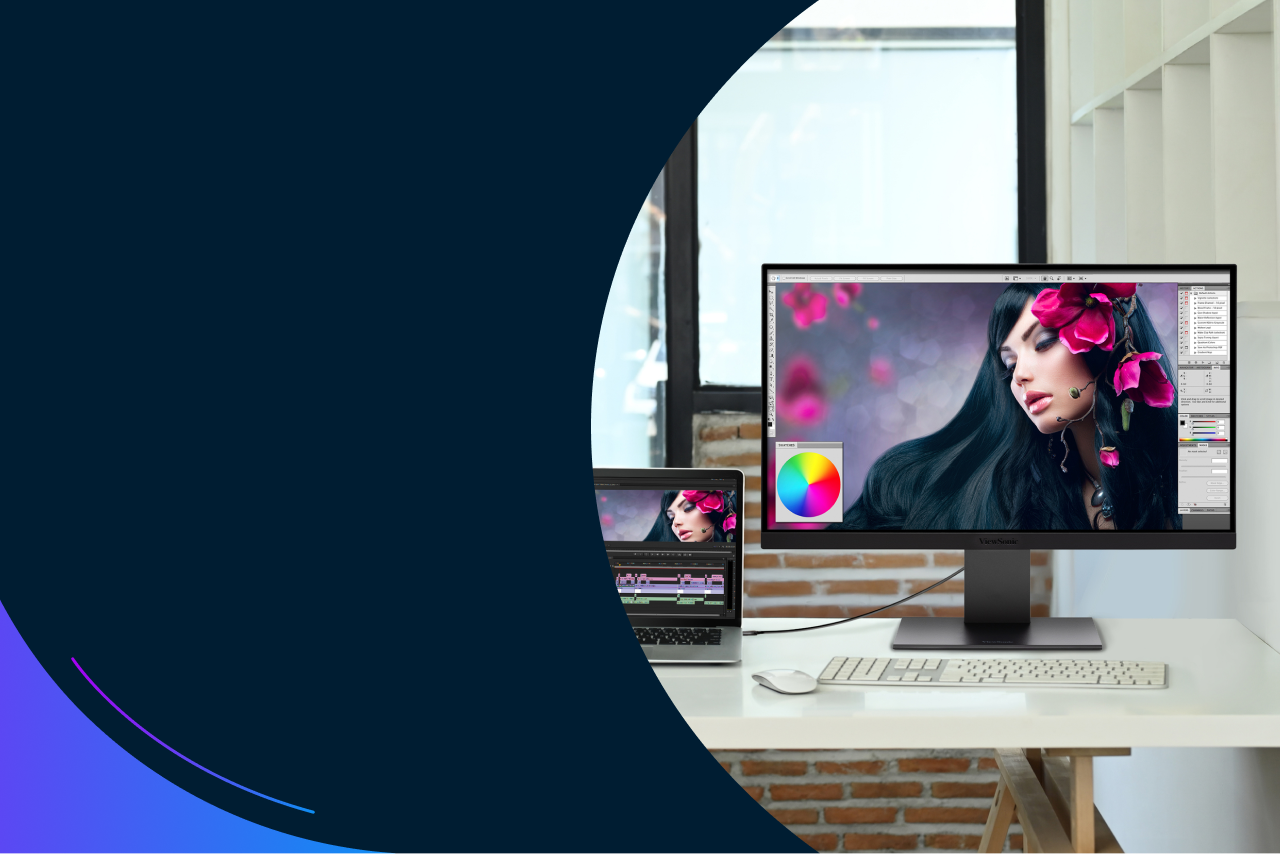
If you’re a graphic designer or otherwise need the best visual fidelity available, you should choose a 5K display. The ViewSonic VP27288-5K ups the resolution to 5120 x 2880, with Retina-level pixel density. Color accuracy is a must here, so of course you get 99% DCI-P3 for studio-reference precision.

Great for Hybrid Work
Hybrid work and general productivity may be your main priority. The ViewSonic VP2488-4K offers a pristine 3840 x 2160 resolution and equally high pixel density. At 24-inches, it’s an ideal companion for your MacBook Pro without taking up too much space. This monitor focuses on what you need for work.
Your Best MacBook Pro Monitor for Video Editing
Another major workflow that gains much from an external MacBook Pro monitor is video editing. Your priorities should be clarity and color accuracy. The ViewSonic VP2776T-4K packs a wealth of capabilities into the 27-inch form factor with Retina-class 3840 × 2160 pixel density. If your work benefits from even greater detail and sharper previews, the ViewSonic VP27288-5K offers a 5K resolution at the same 27-inch size, giving you finer control when scrubbing timelines, checking focus, or color grading.
As a side note, try to go with a monitor that includes a three-year warranty, as opposed to just one with some less optimized options.
How These Monitors Compare for MacBook Pro Users
| Feature | MacBook Pro 16″ | ViewSonic VP2788-5K |
ViewSonic VP2488-4K |
Apple Studio Display |
|---|---|---|---|---|
| Screen size | 16.2″ | 27″ | 24″ | 27″ |
| Resolution | 3456 × 2234 | 5120 × 2880 | 3840 × 2160 | 5120 × 2880 |
| Pixel density (PPI) | 254 PPI | 218 PPI | 185 PPI | 218 PPI |
| Color & gamut | DCI-P3, 1B colors, True Tone | 99% DCI-P3, Pantone Validated, ΔE < 2 | 98% DCI-P3, Pantone Validated, ΔE < 2 | DCI-P3, 1B colors, True Tone |
| Brightness (typical) | 1,000 nits sustained 1,600 nits peak |
500 nits | 500 nits | 600 nits |
| HDR | XDR | HDR400 | HDR400 | SDR |
| Refresh rate | Up to 120 Hz | 60 Hz | 60 Hz | 60 Hz |
| Main connectivity |
3 × Thunderbolt 5 1 × HDMI |
2 × Thunderbolt 4 2 × USB-C 2 × USB-A 1 × HDMI 2.1 1 × DisplayPort |
2 × Thunderbolt 4 2 × USB-C 2 × USB-A 1 × HDMI 2.1 1 × DisplayPort |
1 × Thunderbolt 3 3 × USB-C |
Final Thoughts
While a superb laptop-form factor device on its own merit, the MacBook Pro lends itself very well to expandability. That includes the addition of an external display to increase your screen size and support better multitasking. The best monitors for MacBook Pro integrate its best features and augment them.
Do you need an external monitor as a MacBook Pro user? Most likely. Having that option enhances everything you do, as a bigger screen has an outsized effect on your experiences. But for max benefit, don’t go with just any monitor. Look for the right resolution and pixel density, the most helpful connectivity features, and support for that all-important one-cable factor.
Remember to look at the ViewSonic Mac-Compatible Monitors to review features and get more info.
Frequently Asked Questions for MacBook Pro Monitors
You can connect most modern monitors with digital video inputs like USB-C, Thunderbolt, HDMI, and DisplayPort to a MacBook Pro. The key is to ensure the monitor has a compatible input and that your Mac’s ports match. Also check resolution, refresh rate, and whether you want power delivery (charging the MacBook via the monitor) or hub functionality.
When choosing a monitor for the MacBook Pro, prioritize 4K (3840 x 2160) as a good baseline if you want crisp text and ample screen space. For even more clarity, choose a 5K monitor. Refresh rate matters if you do video editing or gaming. For general productivity 60Hz may suffice, but 120Hz or higher gives smoother motion. Color accuracy and a wide color gamut (DCI-P3) are important if you do creative work.
This is very convenient. Some USB-C and Thunderbolt monitors deliver power to charge your MacBook while connected. The 100W power delivery spec serves as a good guide.
Many MacBook Pros support external monitors with the lid closed in clamshell mode. If you want two or more external monitors, support depends on the MacBook model. The first step in the daisy chain needs to be Thunderbolt 4.
Go to the Apple menu → About This Mac → click System Settings → General → About, then Specifications, and look for “Video Support” or “Display Support.”
The post Best Monitors for MacBook Pro: The Guide appeared first on ViewSonic Library.