
 ViewSonic Library
 Whether you’re working from home or logging in from the office twice a week, your monitor may be holding you back. As digital collaboration becomes a more prominent part of the workday and deep focus becomes harder to find, the 21:9 ultrawide monitor stands out as an underrated yet impactful upgrade.
Read on to learn how a 21:9 ultrawide monitor can improve your productivity and give your daily tasks the space they deserve, or explore the ViewSonic Ultrawide Monitor range.
What the 21:9 Aspect Ratio Gives You
The 21:9 format is wider than a standard 16:9 monitor by roughly 33%. That extra horizontal space changes how you multitask, how you snap windows, and how your eyes and neck feel after a full day of work.
More Screen Space, Without a Second Monitor
A 21:9 ultrawide monitor with a resolution of 3440×1440 gives you the equivalent workspace of two standard 1080p monitors side by side, in a single continuous display. You can line up your main task alongside supporting materials without anything getting left out. That project brief stays visible. That Slack thread stays right there.
The difference becomes especially clear during video calls. Instead of toggling between your meeting window and the document you’re referencing, both sit open at the same time. You stay present in the conversation without losing your place in the work.
- Reduce context switching and stay in the zone
- Keep key materials visible without extra digital back and forth
- Spend less time rearranging windows, more time doing the work
Side-by-Side Window Snapping at Full Width
On a standard 16:9 monitor, snapping two windows side by side sounds useful in theory. In practice, each window ends up around 960px wide, which is too narrow for most applications to be genuinely usable. Spreadsheets truncate columns. Design tools lose panel space. Browsers feel cramped.
At 3440×1440, each snapped half is around 1720px wide, which is wider than a full 1080p monitor. That means two properly usable workspaces on a single screen, without compromise on either side.
Most operating systems support ultrawide snapping natively. Windows 11 Snap Layouts and macOS window tiling both work well at 21:9, and third-party tools like Microsoft PowerToys give you even more control over how the screen is divided.
- Each snapped half is ~1720px wide, wider than a standard 1080p monitor
- Compatible with Windows 11 Snap Layouts, macOS window tiling, and PowerToys
- Divide the screen into two, three, or four zones depending on the task
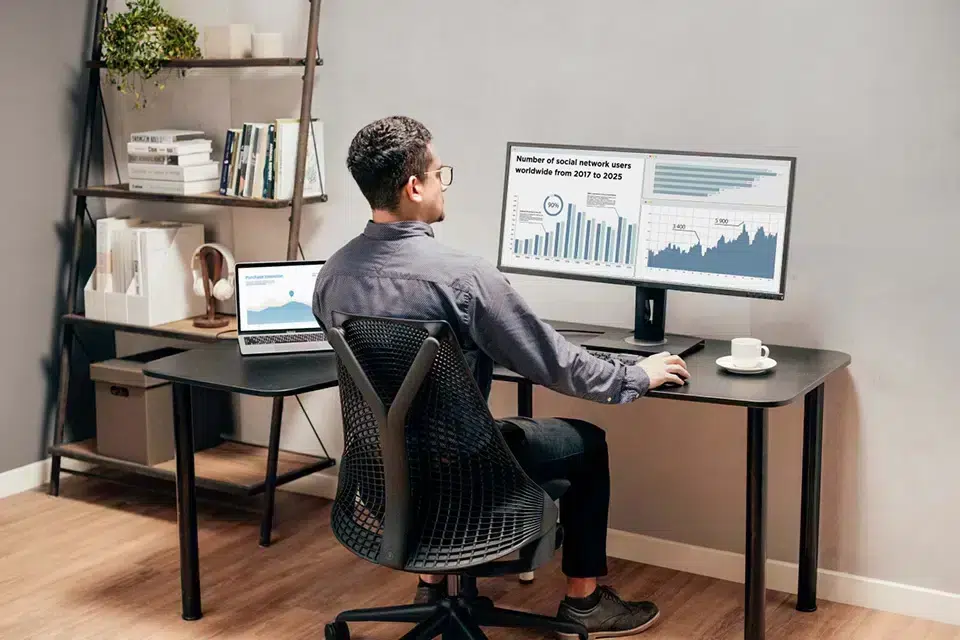
Wider Field of View, Less Eye Strain
For professionals who spend over six hours a day at their screens, display comfort is not a minor consideration. Displays running at 75Hz or more produce smoother scrolling and reduce motion blur, which helps limit visual fatigue during long sessions.
A single ultrawide also removes the physical discomfort that comes with two separate screens. With a dual-monitor setup, your eyes and neck constantly adjust to a bezel gap in the middle. On a continuous ultrawide panel, your content sits in one uninterrupted space and your posture stays more neutral throughout the day.
- 75Hz or higher refresh rate reduces motion blur and eye fatigue
- No bezel gap means no constant micro-adjustments in focus
- More neutral neck and head position compared to a dual-monitor setup


21:9 Ultrawide vs Dual Monitor Setup: Which Is Better for Productivity?
The most common alternative to an ultrawide monitor is a dual-monitor setup. Both give you more screen space than a single 16:9 display, but they come with different tradeoffs depending on how you work.
| 21:9 Ultrawide Monitor | Dual 16:9 Monitor Setup | |
|---|---|---|
| Total resolution | 3440×1440 | 3840×1080 (2x 1920×1080) |
| Display continuity | Single seamless panel | Bezel gap in the centre |
| Desk footprint | One monitor stand | Two stands or a dual arm |
| Cable count | 1 (USB-C) or 2 | 2 to 4 |
| Window snapping usability | Each half ~1720px wide | Each screen 1920px wide |
| Eye and neck movement | Minimal, screen stays central | Frequent turns to secondary screen |
| Price range | €350 to €900+ | €300 to €800+ (two monitors) |
| Best for | Single-screen multitasking, creatives, remote workers | Tasks requiring two full independent displays |
A dual-monitor setup still makes sense when you need two fully independent displays at native resolution, for example running a design application on one screen and a client presentation on the other simultaneously. But for most knowledge workers, an ultrawide delivers the same effective workspace with a smaller desk footprint and a more comfortable viewing experience. Learn more by reading our ultrawide vs dual monitor comparison.
Who Should Use a 21:9 Ultrawide Monitor
The 21:9 format is not the right fit for everyone. If your work is primarily single-application, a standard 27-inch 16:9 monitor at 2560×1440 is often sufficient and cheaper. But for anyone who regularly works across multiple applications, manages a team, or produces visual content, the wider canvas makes a measurable difference to how you work day to day.
Creative Freelancers and Design Professionals
A 21:9 ultrawide monitor is a natural fit for video editors, graphic designers, and illustrators. You can keep your design app front and center, place reference images to the side, and have the client brief open without covering your canvas. When working on high-resolution assets, the extra width lets you see the full composition without constant zooming or panning.

For video editing in particular, a wider timeline means fewer interruptions to scroll and scrub. At 3440px wide, you see significantly more of your edit at once compared to a standard 1920px timeline, which makes pacing and sequencing decisions faster. ViewSonic Ultrawide ColorPro monitors are factory-calibrated with up to 100% sRGB color coverage, so what you see on screen accurately reflects what your client will see in the final output.
Remote Workers and Digital Collaboration
Remote collaboration isn’t limited to scheduled meetings. With an ultrawide monitor, you can keep a video call open on one side while actively writing, reviewing a document, or editing a shared file on the other. There’s room to work and talk at the same time, which removes the constant toggling that makes remote collaboration feel more fragmented than it needs to be.
For hybrid workers moving between home and office, the transition is straightforward. A USB-C dock reconnects power, display, and peripherals with a single cable. Your workspace is exactly as you left it within seconds of sitting down.
Project Managers and Team Leads
A 21:9 ultrawide monitor gives project managers better situational awareness during fast-moving meetings. With task boards, timelines, calendars, chats, and documents all visible at once, you’re ready to speak up with the right information at the right time, rather than hunting for the right window mid-conversation.
The extra screen space also lets you keep private notes or messages open in a separate area when sharing your screen with the team, without needing to close or minimise anything before presenting. For anyone who runs frequent reviews or standups, that alone removes a recurring source of friction.
Final Thoughts: A Productivity Game-Changer
If your current monitor is slowing you down, it’s time for an upgrade. Whether you’re multitasking across projects, managing a team through back-to-back meetings, or producing visual content that demands screen space, a 21:9 ultrawide monitor removes friction from the way you work.
Take a look at the ViewSonic Ultrawide Monitor series to find the right fit for your workflow.
Frequently Asked Questions
Yes. A 21:9 ultrawide monitor at 3440×1440 gives you the horizontal space of two standard 1080p monitors in a single continuous display, which reduces context switching, makes window snapping genuinely usable, and keeps multiple applications visible at the same time without alt-tabbing.
For most knowledge workers, yes. A single ultrawide panel eliminates the bezel gap, reduces cable clutter, and keeps your screen centred in front of you, which is easier on your neck over a full day. A dual-monitor setup remains the better choice when you need two fully independent displays running at native resolution simultaneously.
The most common resolution for 21:9 ultrawide monitors is 3440×1440, also referred to as UWQHD. This is roughly 33% wider than a standard 2560×1440 monitor and significantly sharper than 2560×1080, which is the entry-level ultrawide resolution.
Yes, and it works better than on a standard 16:9 monitor. At 3440px wide, each snapped half is around 1720px, wider than a full 1080p screen. Windows 11 Snap Layouts, macOS window tiling, and tools like Microsoft PowerToys all support ultrawide layouts natively.
Video editors, graphic designers, remote workers, and project managers benefit most. Anyone who regularly works across multiple applications at the same time will notice the difference. For single-application use, a standard 27-inch 16:9 monitor is often sufficient and more cost-effective.
The post Why a 21:9 Ultrawide Monitor Is a Game-Changer for Productivity appeared first on ViewSonic Library.
 Fidose of Reality
 Idyllic Pursuit
  TechPlanet
  ZDNet
ZDNet